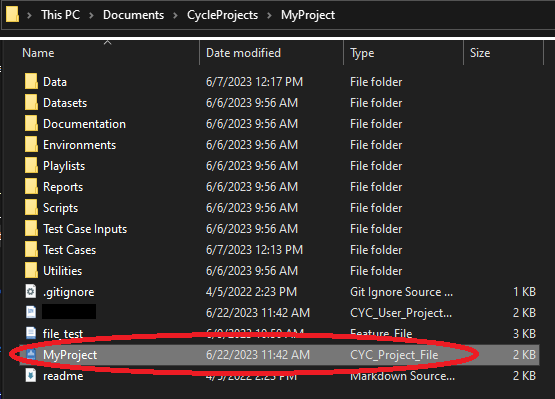
Multiple Cycle Project Files in the Project Directory
This issue can be caused by a corrupted Cycle project file (.cycproj) or by multiple Cycle project files saved in the project directory.
Cycle is not able to open a project if there are multiple project files in the same project directory.
The example below shows multiple Cycle project files in the project directory:
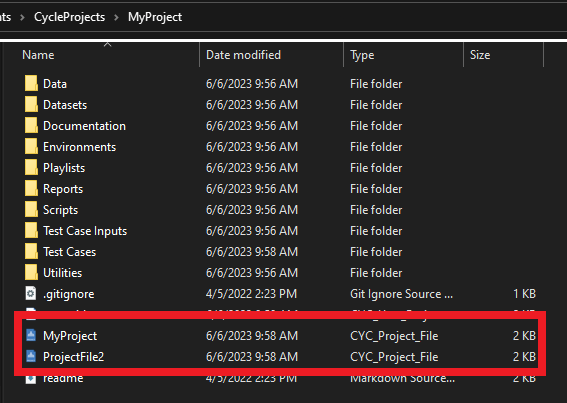
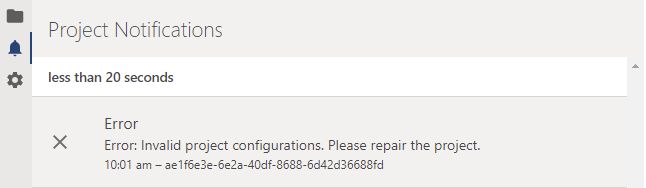
Cycle versions starting with 2.13 will display an error message if you attempt to open a project when there are multiple project files in the directory.
Pop up error message:
Project notification message:

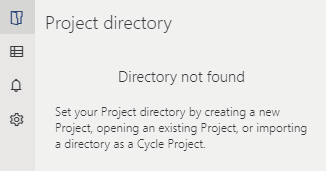
Cycle versions prior to 2.13 do not display an error message when this issue occurs. Instead, you may see a message indicating that the project directory was not found and/or Cycle may become unresponsive and eventually force quit.
You can resolve this issue by removing the additional Cycle project files and keeping only one project file in your Cycle project directory.
You may want to save copies of the additional Cycle project files in another directory in case you need to review the settings in those files using a text editor.
Opening a Cycle Project File from a Shared Drive
Opening a Cycle Project file from a shared drive such as Microsoft OneDrive can also result in the project not opening properly.
Once you attempt to open a project file saved in OneDrive, Cycle will continue to try to open that project file each time you close and re-open the application. This is due to Cycle saving the project location of the most recently opened project in a settings file. Cycle will attempt to open the project saved on the shared drive until you successfully open a locally saved project.
In order to resolve the issue, complete the following steps:
1. Close the Cycle application.
2. Copy the entire Cycle project directory from your shared drive to a local drive.
3. Navigate to the project directory using File Explorer and double-click on the Cycle project file. This will run the Cycle application with Cycle opening the local project file.